Two agents check your findings.
Every verdict stays visible.
With validation on, which is the default, two AI agents check what DecisionBox finds. A verifier compares each claim with the records it cites. A refuter goes back to your warehouse to try to prove it wrong. The finding keeps the verdict, so you can see what held up and what didn't.
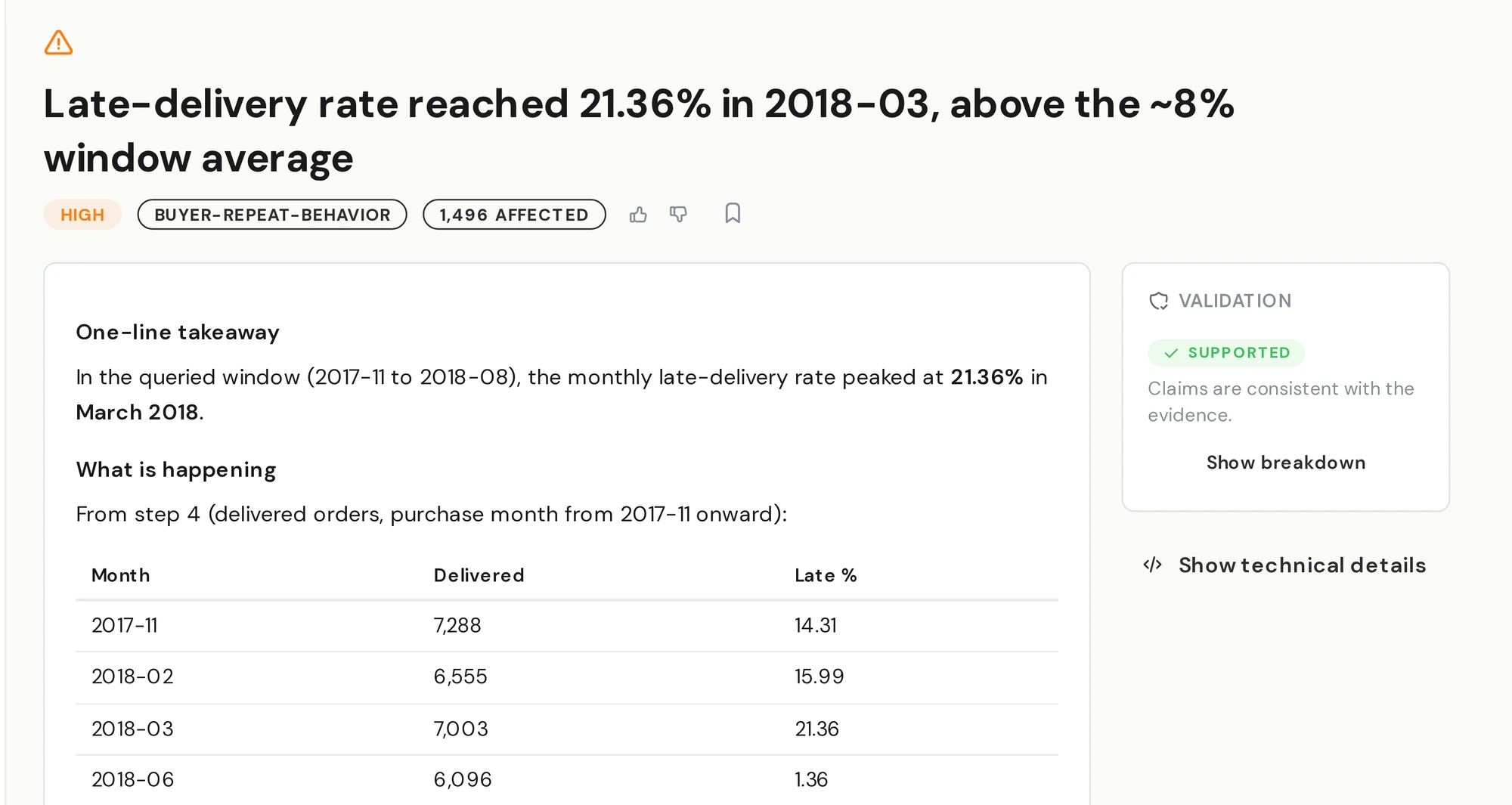
A finding from a run on a public e-commerce dataset. The Validation card on the right says Supported.
Two checks, from opposite sides
Checks each claim against its evidence
It splits the finding into separate claims: the headline, each number, each comparison. Then it puts every claim next to the row it depends on and marks it confirmed, supported, rejected or unverifiable.
Tries to break it
It looks for evidence against the claim. It can write and run its own SQL against your warehouse, or reread the saved query results. It has to read data before it may return a verdict. If it runs out of rounds without doing so, the result is downgraded to Partial.
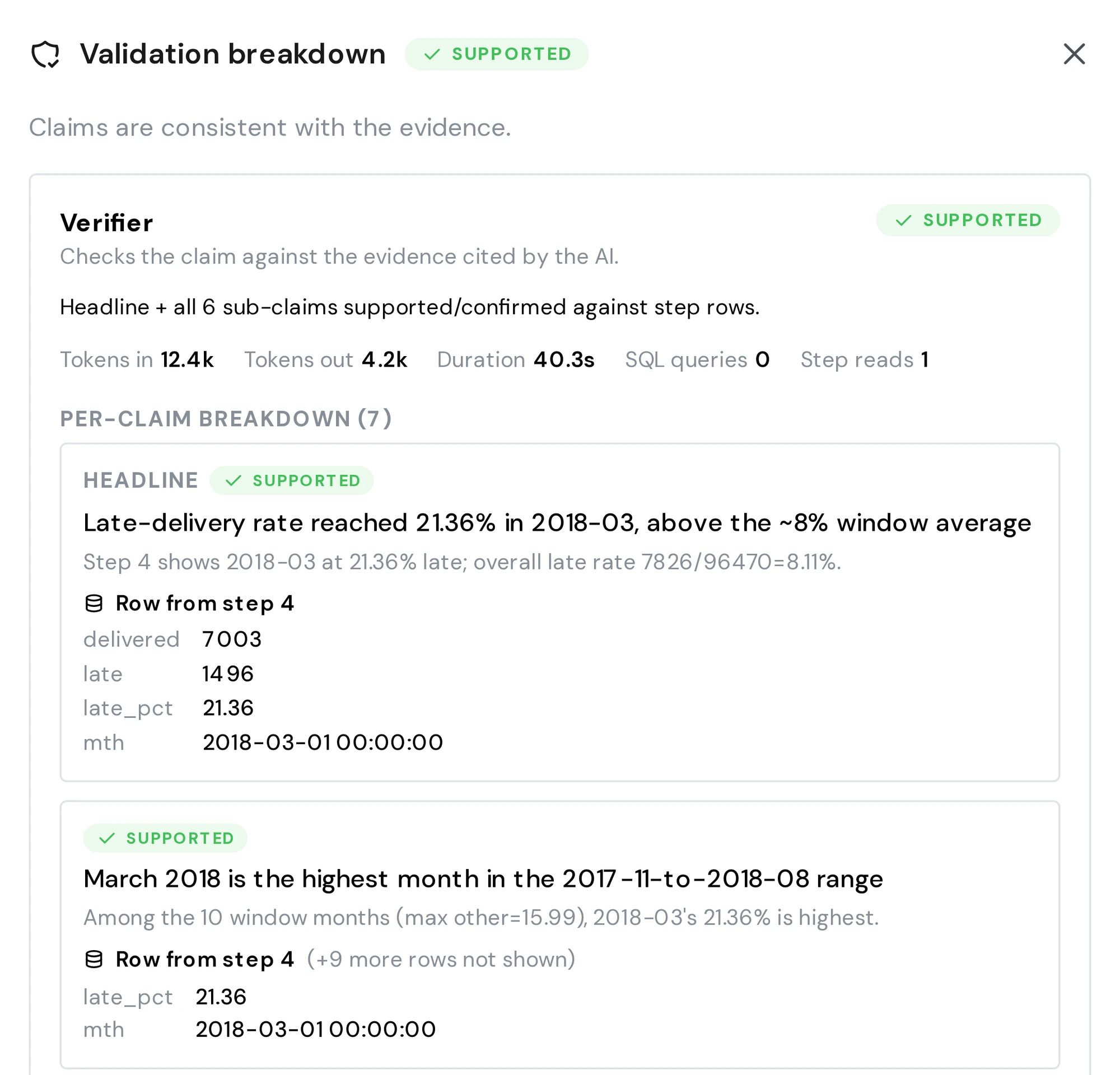
Each claim sits next to the row it was checked against: 7,003 delivered orders, 1,496 late, 21.36%.
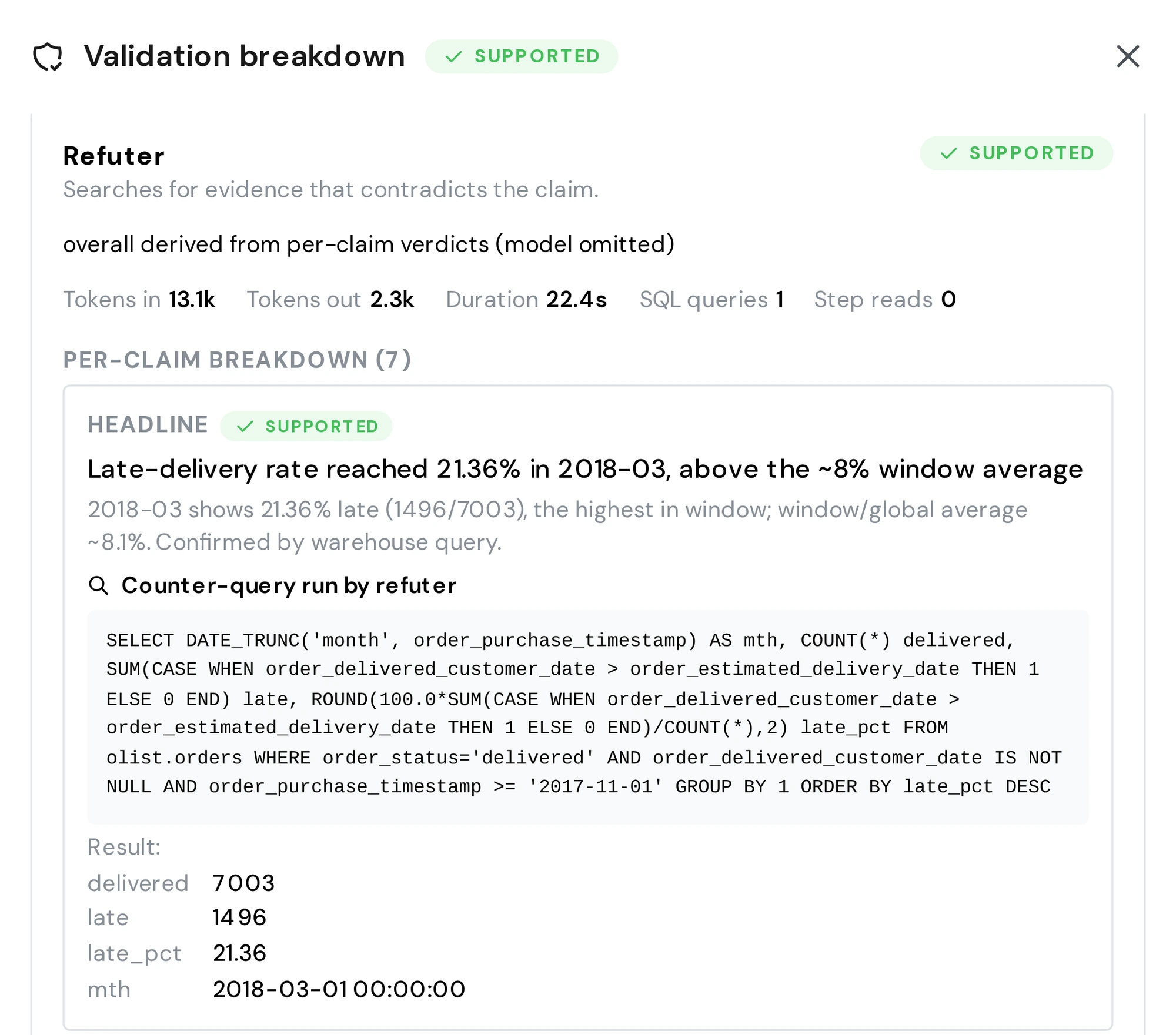
Here the refuter wrote a new query and got the same answer: 1,496 of 7,003 orders late.
A label that travels with the finding
The two results combine into one verdict on the finding.
The rows match the claim exactly, and the refuter found nothing against it.
The rows are consistent with the claim, and the refuter found nothing against it.
Some claims are backed. Others couldn't be checked, or a check was incomplete.
There were no rows to check the headline against.
The verifier or the refuter found rows that contradict the headline.
A finding can also show Skipped, when the run reached its validation limit first, or Disabled, when validation is off for the project. You can filter your insight list by verdict.
A rejected finding stays in view
This finding claimed that the top price band brought in 46% of gross sales value on 24% of sales. The verifier read the rows: the band was 15.2% of sales. The total in the finding was off too, so the 46% share was wrong as well. Both agents rejected it.
The finding is labeled Rejected, not quietly dropped, with the correct figures beside it.
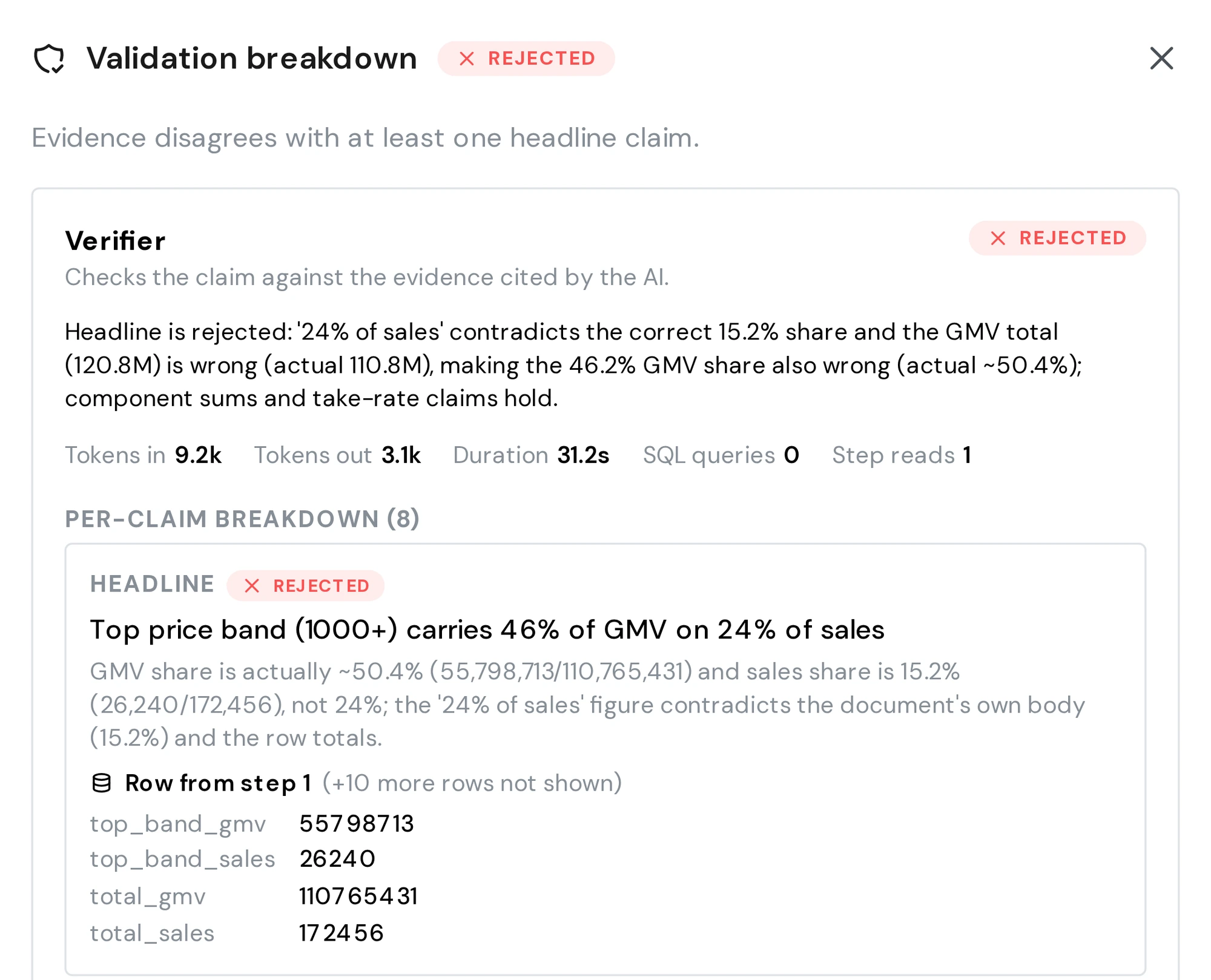
A finding from a run on a public ticket-sales sample dataset, rejected with the figures from the rows.
By default, only confirmed and supported findings are used to write recommendations. You can change which verdicts count for each project. With validation on, every recommendation a run keeps is checked the same way.
Findings are written to be checked
A fixed set of rules shapes how each finding is written, before any check runs. A superlative such as “highest” has to name the data window it came from. A finding can't claim more than its queries covered: if the widest query spans 11 weeks, it can't talk about “last year”. Each number cites the query step it came from, so the verifier knows which rows to read.
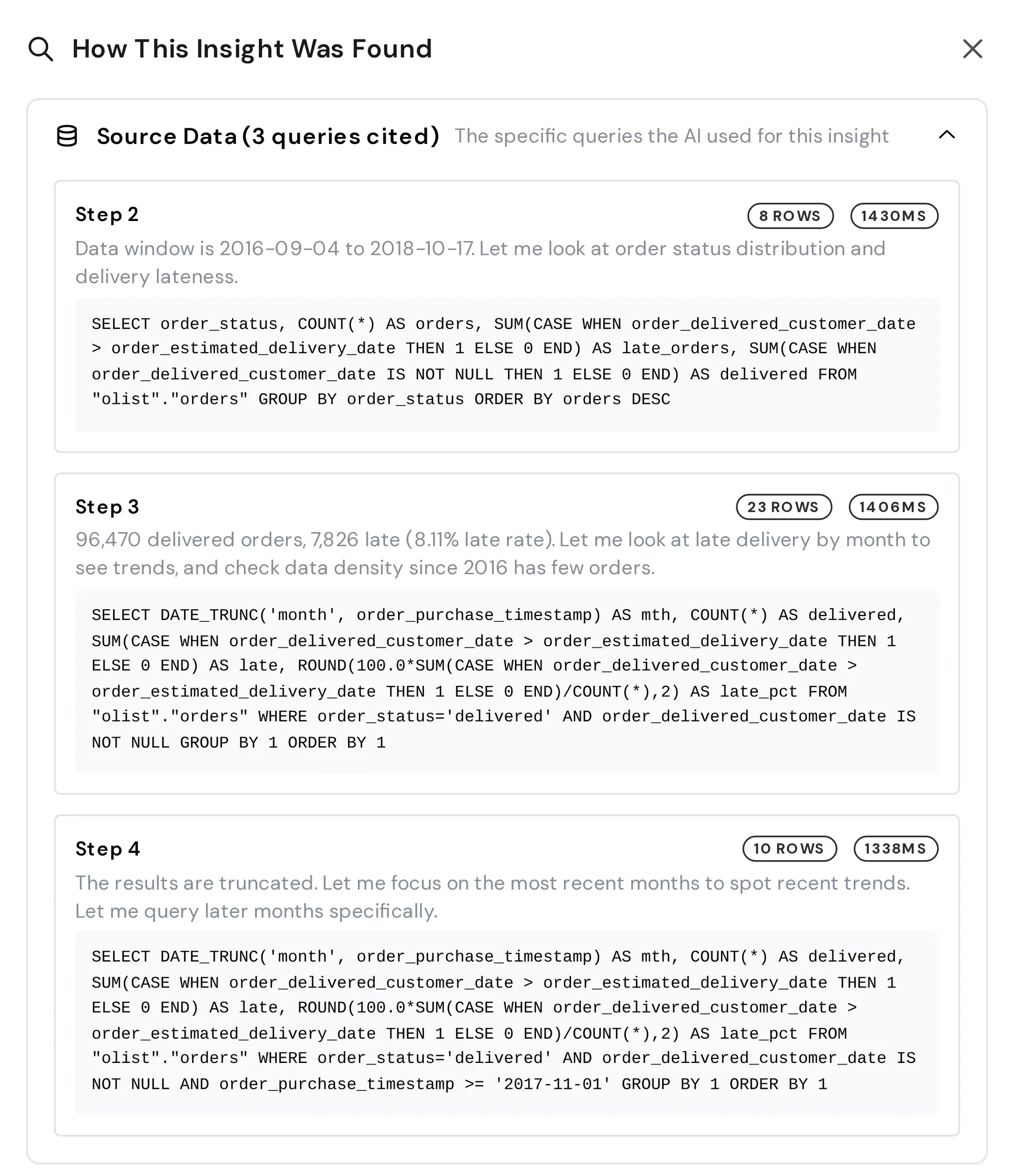
The queries behind the finding are on the record, each with its row count and run time.
You decide how it runs
Each run checks up to 30 findings, starting with the ones that affect the most records. Findings past that limit are marked Skipped.
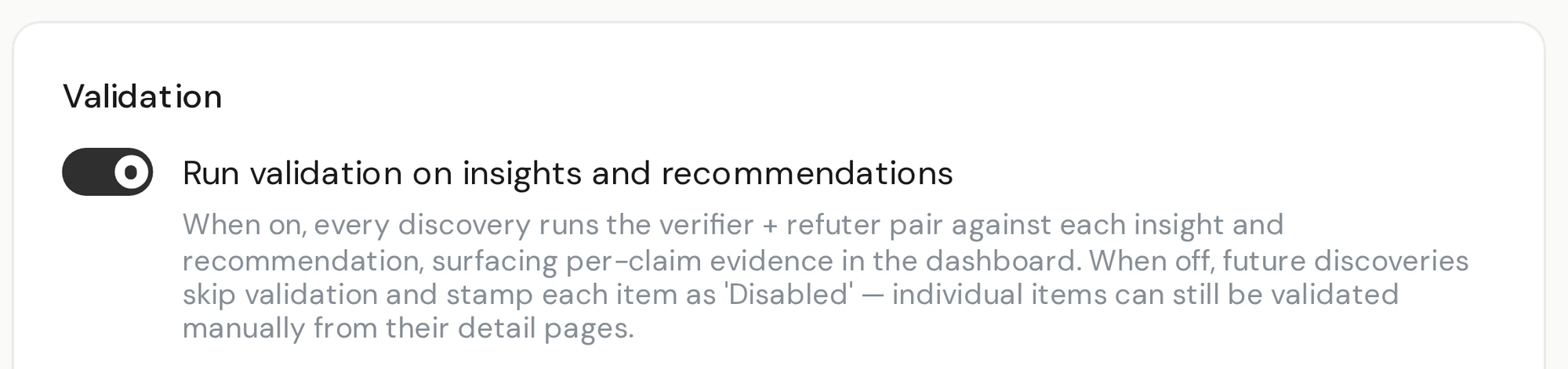
Turn it off under Settings → Advanced, and runs spend no model calls on validation.
Run validation on any single finding or recommendation from its page, with live progress and a cancel button.
The verifier and the refuter each have their own step in Settings → Models, so you can give them a different model from the rest of the run. Bring your own model explains how.
What validation doesn't do
Validation checks a finding against your data. It can't tell you whether the data itself is right, and it doesn't decide whether a finding matters to your business. That call is still yours. The verdict, the evidence and the SQL are there to help you make it.
Questions people ask
Does validation check every finding?
With validation on, which is the default, each run checks up to 30 findings, starting with the ones that affect the most records. Any others are marked Skipped, and you can validate each of them on demand from its page. Every recommendation the run keeps is checked as well.
What happens to a finding that fails?
It stays in your list, labeled Rejected, with the evidence that contradicts it. By default, rejected findings aren't used to write recommendations.
Does validation add cost?
Yes, some. Each check makes its own model calls, and the refuter can run queries. If you switch validation off for a project, those calls aren't made. You can also run the verifier and the refuter on a model of your choice.
Is validation in the open-source edition?
Yes. Validation is part of the open-source Community edition. Enterprise is built on the same platform, so it has validation too.
Try it in two minutes
Clone the repo, run docker compose up, and point it at your warehouse.